How to use ChemLevel
Every screen, what it’s for, and what each number on it means. It’s written for the person doing the round, and for whoever has to explain the figures afterward.
The screens below show sample data for a fictional two-site operator.
1. The daily round
The dashboard shows what needs doing today. You can reach everything else in the app from it.
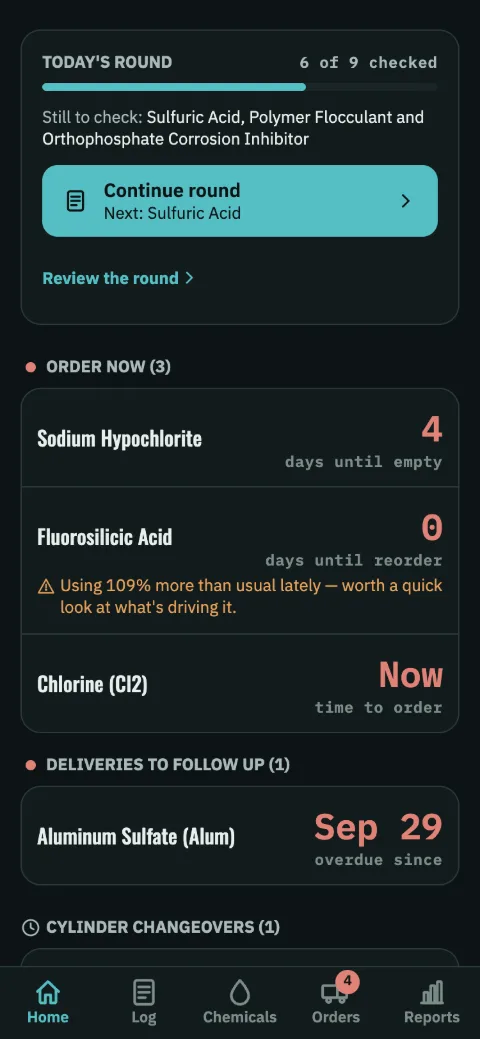
What the dashboard shows
- Today’s round
- How many chemicals have been checked today, out of how many are set up, and a button that opens Log on the next one still to check. “Next” follows Log’s chemical list, which you can drag into the order you walk the plant. With three or fewer left, it names them. This is the round, the one thing to finish each day. Once it’s done, it shrinks to a single line. A supervisor on the Team plan also sees Review the round under the button. It opens Reports → Rounds.
- Needs you
- Every chemical and rack that needs somebody, most urgent first, each a card with the button that deals with it. Order now and Order soon say when it runs out and when to order, and Place order opens the order on the Orders tab. Delivery late has Log delivery, for when the truck comes. Follow up is an order that’s due after the tank runs dry. Changeover is a rack due a swap, with Record swap. A chemical whose reading has gone old, or that’s using more than usual, is brought up here too. Tap a card for the chemical itself. On a read-only account, Place order, Log delivery and Record swap are off.
- Under the cards
- Each order on its way, a line apiece with the day it lands, then the chemicals that need nothing yet, named in one line that opens the Chemicals tab.
- Storage under the required days
- Shown only where the plant has set required days of storage. It lists the chemicals whose full tank or rack wouldn’t last that long at current use. It links to Reports. Once cleared, it stays away until another chemical falls short or the number changes.
- Maintenance
- Problems somebody flagged during a round. A flagged problem stays until it’s marked fixed.
- This week’s deliveries
- Deliveries due between today and Saturday, soonest first. Tap one to log it when it comes.
2. Logging what was used
You get here with one tap from the dashboard, or from the Log tab. Each chemical is set up to be logged one of two ways, and the screen shows the one that applies. You don’t have to choose.
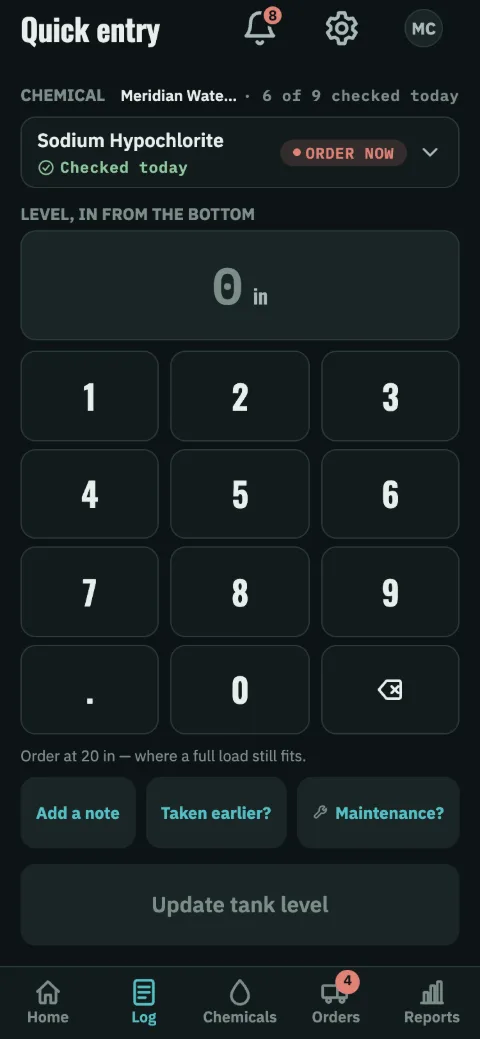
Tank level, or amount used
Tank level is a reading off the gauge in inches, feet or gallons, whichever that tank is gauged in. ChemLevel works out how much was used from the change since the last reading.
Amount used is the figure straight off a meter or a batch sheet. Use it where there’s no usable gauge.
Log has no plant switcher of its own. With more than one plant, the line above the chemical names the plant you’re logging at. To change plants, use any other tab.
The keypad is large because this gets done in gloves, at a tank, in poor light. The line underneath gives the level at which this chemical needs reordering, so you know as you type whether you’ve just crossed it. Beside the number, a small tank fills to what you’ve typed, with that level drawn across it, and turns red at or under it.
A reading the tank can’t hold isn’t saved, and the line explains why. That’s a reading above the tank’s full reading, or past the bottom on a gauge read from the top. It’s nearly always a slipped decimal point. If it isn’t, the tank’s full reading is set too low. Corrections to past entries are checked the same way.
Once you type a reading, it’s compared with where the tank was expected to be. If it’s more than half a day’s use away, the confirmation tells you (Level 2.0 in lower than expected, about 17 hours’ use). Over a few rounds, that’s how a leak or a change in dosing shows up early.
If it’s more than two days’ use away, and more than a few marks on the gauge, you’re asked to check it before it saves. That’s usually a slipped digit. A rise the size of a delivery with no order out gets a question too. If a delivery did come, you’re told to log it as well. Log doesn’t show the expected figure while you type, so it can’t steer the reading.
After each entry, the confirmation at the bottom of the screen offers the next chemical still to check: Continue round, or Finish round for the last one. It goes on from the one you logged, in your chemical list’s order, and comes back around to any you skipped. Nothing moves until you press it. If you start typing, you stay where you are.
- Add a note records why a day was unusual (a pump calibration, a line flush). It shows on the entry afterward.
- Taken earlier backdates the entry if you’re catching up on yesterday.
- Logging again on the same day corrects that day’s entry. It doesn’t add a second one.
- To correct a past entry, open it from Recent entries on the chemical’s Usage view. You can edit the value, the note and the time it was taken. Every change is kept in the change history, with who made it.
- A tank level or a chlorine cylinder’s weight read on a ShiftRounds round, once your plant connects it (Settings, below), is logged here once the operator finishes that checkpoint, usually moments after it’s read, and counts like a reading logged here. Wherever ChemLevel says who logged a reading, it says From ShiftRounds and the operator’s name. A reading corrected on the round replaces the first one, and one taken with no signal arrives when the operator’s phone syncs. A tank read in both apps follows whichever reading is newest.
3. Cylinders
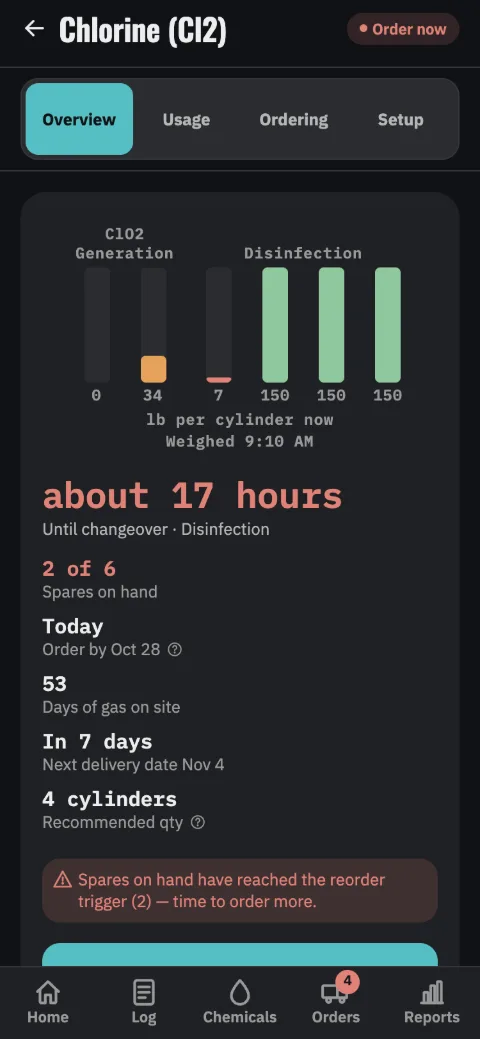
Weighed, not gauged
You weigh each cylinder in service and enter the weights. ChemLevel tracks how much gas is left across the rack and how many full spares are on the floor. A weight above what a full cylinder holds, plus 5% for the fill and the scale, isn’t accepted, so a slipped digit can’t read as a swap.
Ordering works off the spares count. You set the number of full spares at which it’s time to reorder, usually one, so the plant is never down to none. If you don’t set one, the delivery is planned to arrive before the last spare goes onto the rack, with the safety stock still in hand.
One rack may feed more than one use, such as straight chlorination and a chlorine dioxide generator. If so, you can name each purpose and say which positions belong to it. The ordering math doesn’t change. The rack is still one shared pool.
Changeovers are counted in hours once they are close. A day count of “0” can’t tell you whether the swap falls before you go home or to the next shift. Under a day, it reads swap in about seven hours, and names the cylinder or the purpose it feeds where that’s known for sure. It stays a day count where the rack hasn’t been weighed lately. An hour figure from a two-day-old weigh-in would claim more precision than the reading behind it.
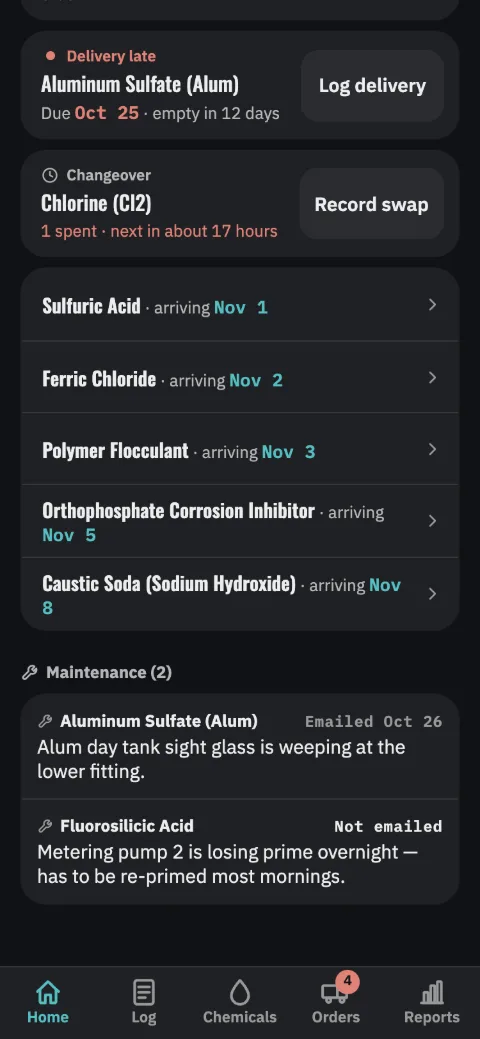
Any changeover due inside the window you choose is listed on the Dashboard. It stays there until the cylinder is changed or the rack is weighed, even if you’ve cleared the alert. The bell alerts you once, only when a rack is down to hours, and so does a notification if you have those switched on. You clear it like any other alert.
Each row has a Record swap button. Check the cylinders you changed, and the spare count drops by that many. The rack’s own page has the same button under its figures, so you can record the swap right where it says swap now.
The days you change cylinders. Under the rack’s configuration, Changeover days are the days someone is there to change one. A cylinder forecast to run out on another day is flagged on the last changeover day before it (Cylinders 5 and 6 run out Sunday — swap them today). The flag shows on the Dashboard and the rack’s own page, and as an alert that day. On the rack’s page, a cylinder’s line appears from the Monday of the week it has to be changed. A swap ten days away doesn’t ask for attention yet. Left unset, every day is a changeover day and nothing is flagged.
A cylinder changed with gas still in it. Check one that wasn’t empty, and the sheet asks what was left in it when it came off. Enter what the scale read. That gas goes back with the cylinder, so it isn’t counted as used. Leave the box blank for a cylinder that ran empty. The same box appears as Old cyl in two other places. One is on a weigh-in that shows a swap nobody has recorded. The other is a past swap under Recent weigh-ins on the chemical’s Usage view. Use it there when the figure turns up later.
A swap recorded later. Changed at two and recording it at five? Swapped earlier? on the same sheet sets when it was done. Recorded at five, the cylinder that took over would show three hours of use too fast, and its countdown too short. You can go back as far as the rack’s last weigh-in.
A swap done before that weigh-in is already in it, since the new cylinder was weighed and the spares counted. In that case, the sheet tells you to enter what was left in the old cylinder on that weigh-in, under Recent weigh-ins. That way a spare isn’t taken off twice. If you entered the wrong time, it tells you to set a later one. It also warns before you record a second swap for a cylinder that already has one recorded since the last weigh-in. It warns too about a cylinder that a weigh-in in the last twelve hours already shows as new, with its spare already off the count.
A weigh-in entered later. This is the reverse case. Say the seven o’clock weigh-in is typed in at noon, after a swap was recorded at nine for a cylinder changed before seven. The weigh-in shows that cylinder full where yesterday’s was nearly empty. ChemLevel matches it to the swap already recorded, takes no second spare off, and tells you so.
It counts as that swap only if the swap comes next for that cylinder and falls within twelve hours of the weigh-in. The cylinder it took off must also have held no more than the old one last weighed. A later swap, or one that took off a fuller cylinder (as before a weekend), is a separate change and takes its own spare. If you delete that swap afterward, its spare stays off, because the weigh-in shows the cylinder was changed.
For the arithmetic behind a changeover, how much gas a cylinder can give, and what the rules require of scales and switchover, see Chlorine cylinder changeovers.
4. Reading one chemical
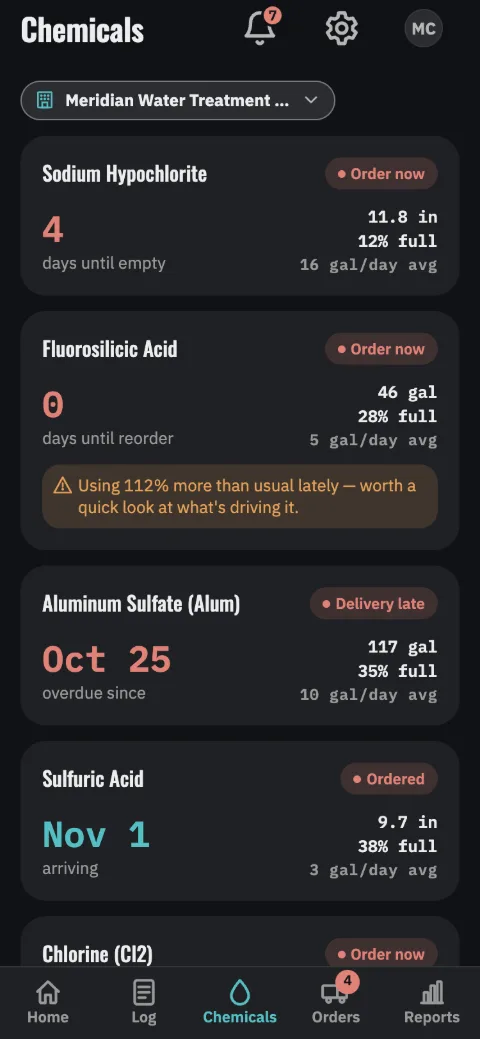
Finding it
The Chemicals tab lists every chemical at this site, worst first. Each shows its status, the figure that matters next (the same one the dashboard leads with), its level, how full it is and what it uses a day. Tap one for the detail below. The dashboard shows the ones that need somebody as cards under Needs you, and folds the rest into a line or two.
The level is in the unit the tank is read in (48.8 in, 5,480 gal). The level and how full it is show where the tank most likely is now. That’s the last reading, drawn down at its usage since, the same figure as Current level on the chemical’s own page. A cylinder rack shows its spares on hand instead (2 of 6 spares). A tank logged by amount used is never read, so it shows no level.
On a computer, ChemLevel’s sections run down the left side, with Settings at the foot, and the plant, the bell and the account menu sit along the top. Chemicals is a table there rather than cards. Sort it by name, status or how full, and click a chemical to see the top of its own page beside the table: its gauge, its figures and the next 30 days, with Place order and Log a reading under them. In a narrower window, the click opens its page instead. On a wide screen, the dashboard’s Needs you is a table too, a row to each, and so are the chemicals to order on the Orders tab, each row ending in its Place order.
On a computer, the Chemicals tab also has a Control room view, a wall for the plant. Each chemical appears as the card from the top of its own page, gauge and all, with the line across it at the order level. Every card is the same size, as large as the window allows while they all fit. When they don’t all fit, the recommended quantity is dropped first. The level, days until empty and the dates always stay. Once the cards are as small as they go, the page scrolls, with every card still whole.
The cards stay in place as their status changes. Arrange lets you drag them into any order, or move one with the arrow keys. The arrangement is kept in that browser only. It doesn’t change what anyone else sees, or Log’s order.
Full screen hides everything else and keeps the display awake, for a screen left up in a control room. It refreshes every minute and shows when it last did. That line turns amber after 15 minutes without a refresh. Press Escape to leave. List view, where the button that opened the wall was, goes back to the list. The tab also opens on the list after the page reloads.
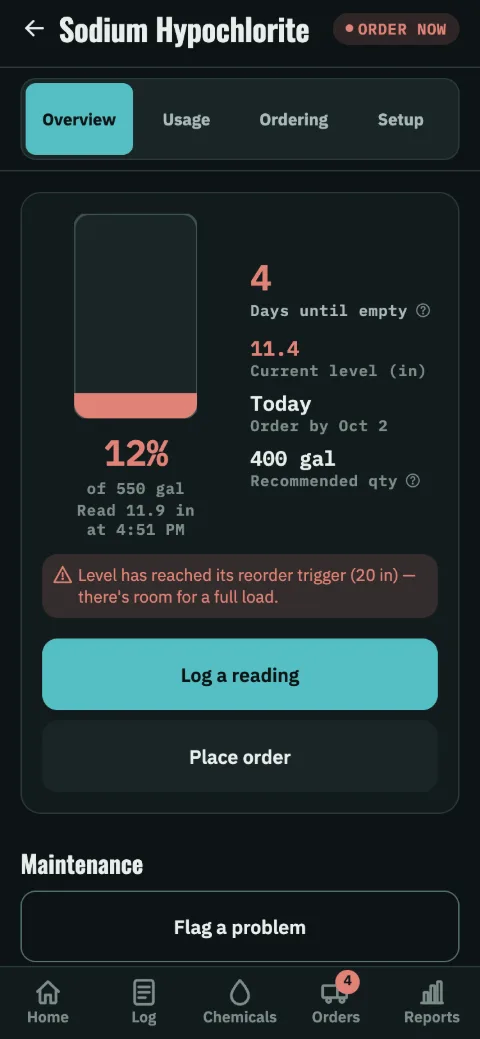
Four views of one chemical
Under the chemical’s name are four views, and it always opens on the first. Overview shows what state it’s in and what to do about it. Usage shows the daily rate, the last 90 days, and the entries both are worked out from. Ordering shows where the year’s orders land and the settings that decide them. Setup is the tank or rack itself, with how long it lasts when full. The switch stays at the top as you scroll.
The figures at the top
Beside the tank’s gauge, which is always in the status color, the first and largest figure is the one that decides what happens next. Everything else sits under it. Once the tank is nearly empty, that figure is days until empty. Before that, it’s when to order: a date where an order-by level is set, and a count of days where one isn’t. Once an order is out that will land in time, it’s when the next one is due.
That figure takes the status color, like the card in the list, and once the tank has reached its order-by level the level takes that color as well. It stays uncolored while such an order is out or before any use has been recorded.
On a cylinder rack, the first and largest figure is the changeover. Where the rack has purposes, it names what that cylinder feeds. It turns red once it is under a day. The rack’s order-by figure comes further down, and spares on hand takes the color once they’re down to the order-by number.
Dates that are close read the way people say them: Today, Tomorrow, In 2 days, with the calendar date beside the label. More than a week out, the date itself takes over.
Under the figures are the two things you can do here: Log a reading, then Place order. On a tank logged by amount used, the first is Log usage, and on a rack it’s Record swap. Ordering is one tap from here.
The line across a tank’s gauge is its order level, named under the gauge (Order at 20 in): the order-by level, less any delivery cushion, where a full load still fits. How close the tank is to ordering reads off the drawing. Under a tank’s figures, Next 30 days draws the coming month as a bar, ending where the tank runs out, with the day to order by and any delivery marked on it and the same thing in a sentence (Empty Oct 31, in 4 days; order by today).
Under the gauge is when it was last read (Read 9:58 AM, Weighed yesterday), so the first screen shows whether today’s round has reached it. Between readings, the gauge shows where the tank most likely is now, drawn down at its usage rate. That line then names the reading it runs from (Read 48.8 in yesterday). The next reading replaces it.
With nothing logged for over a day, a warning under the figures says they may be out of date. After four days, the level stops being drawn down, and the card and this page say how long it has been. A level is only called reached on a reading. When the estimate gets to the order-by level, the card asks for a reading instead of saying there’s room.
Below those is Maintenance, where you flag a problem. On a cylinder rack, Cylinders comes first. It shows each position, whether it’s empty and needs changing, how long the one pulling has left, and which are on standby.
The bars and each bank’s pounds left are drawn down to now too. Every cylinder that was drawing at its last weigh-in comes down at its own rate. On a bank that pulls from several at once, they all move together, while one waiting its turn stays as weighed. A cylinder just swapped in waits on standby if its bank runs one cylinder at a time and another is pulling. On a bank that pulls from all of them at once, it joins the others. Spares on hand change only when a swap is recorded.
- Current level
- Where the tank most likely is now, in the unit it’s gauged in. It’s the last reading, drawn down at the usage rate since, with the reading itself under the gauge. It’s shown to as many decimal places as the tank is read to, a tenth at least. A reading always shows exactly as it was entered: 13.48 ft, not 13.5. After a delivery is logged, until the tank is read again, it reads Estimated level. That’s the last reading run forward at the usage rate, with the delivery added on the day it came (as much as fit then). A line under the figures names the delivery and what the tank last read. The next reading replaces it.
- Days until empty
- What’s left, divided by the average daily usage. It assumes today’s rate holds, so it changes when usage does. It’s always on the card, and it leads the card once a tank is nearly empty. On a cylinder rack it’s Days of gas on site, counting every cylinder hanging and every spare. The changeover is a separate figure.
- Order by
- The day to place the order by. With an order-by level set, ChemLevel looks for the first day that begins with the tank projected at or below that level, less any delivery cushion. It takes that day, or the next delivery day after it. The order-by date is that delivery day, less the supplier lead time and the safety stock. If that delivery would come after the tank runs into its safety stock, the delivery moves to the last delivery day before. The order then goes one lead time before that, if that’s sooner. If the level comes sooner than the vendor can deliver, the order-by date is today. With no order-by level, it’s one lead time before the last delivery day that comes before the tank would run into its safety stock. If no delivery day comes in time, it’s today. Once you’ve placed that order, this becomes Next order by and moves on a cycle. Beside it is a Delivery due date for the load already coming.
- Recommended qty
- What to ask for. It’s either the standard load you’ve set up or enough to fill, capped at the room there will be when it lands. That way a delivery can’t overflow the tank. A tank ordered by the full load with no size set uses the middle of its last five deliveries, once there are three.
- Average daily usage
- On the Usage view. It’s a 14-day average, with the 7-day and 30-day figures beside it so you can see whether the plant is trending. Every forecast for the chemical is built from this number. The entries it’s averaged from are on the same view, under the last 90 days.
Several of these have a small ?. Tap it to open How the numbers work at the entry for that figure. It shows what the figure is worked out from, with the arithmetic done in real numbers. Use it when somebody asks where a figure came from.
5. What the forecast is telling you
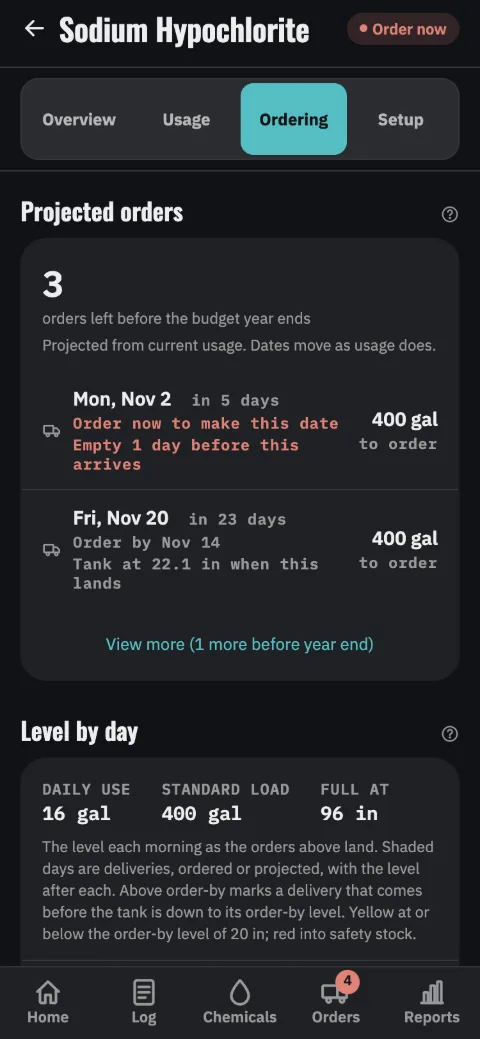
Projected orders
ChemLevel projects the whole run of orders to the end of your budget year at current usage. That’s the list a budget conversation needs: how many more orders, roughly when, and how much each time. It heads each chemical’s Ordering view, above the settings that produce it, so you see the effect of a changed lead time right where you changed it.
Each row gives the date the delivery should land, the quantity, and what the tank will be down to when it does. That’s how you check the plan leaves no gap. No row is sooner than the supplier’s lead time allows. A delivery needed before then is shown on the first day the vendor can make. The row gives what the tank will be down to by then, or how long it would be empty first. With an order-by level, no row is later than the last delivery day before the tank would run into its safety stock.
Dates move as usage moves. A hot week pulls them in, and a shutdown pushes them out.
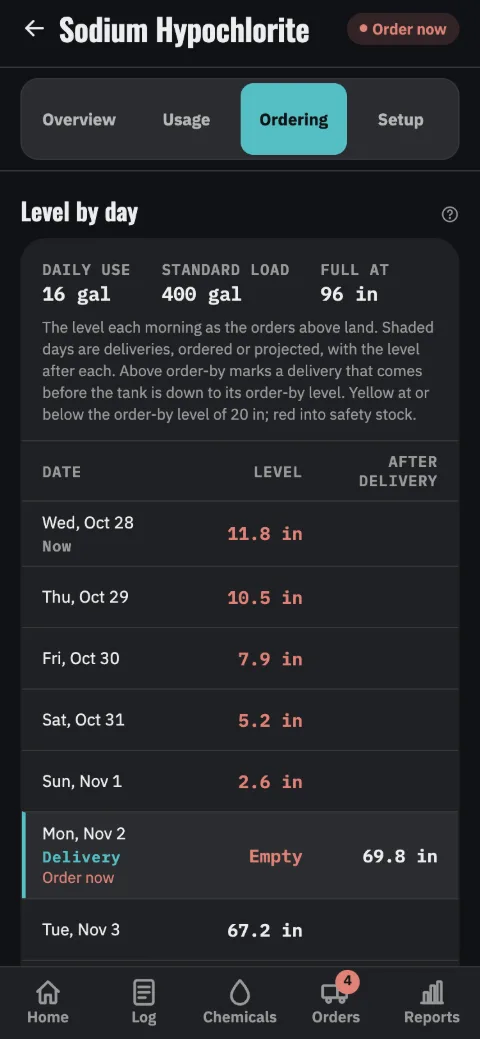
Level by day
Under the projected orders, a tank has the table many plants keep in a spreadsheet. For each of the next 90 days, it shows what the gauge should read that morning as those orders land. It uses the inches, feet or gallons you read it in.
Delivery days are shaded, both those already ordered and those projected. Each shows the date its order has to go by (Order now once that date has come) and what the tank reads once the load is in. The level rises on each and runs down again. A delivery that comes before the tank is down to its order-by level is marked Above order-by. An order already placed that won’t all go in says Won’t fit, and by how much. Export CSV takes all 90 days to a spreadsheet.
Asked where one of these figures comes from? How the numbers work covers every derived number in the app (the usage rate, the runway, the order quantity, the budget projection). It shows what each is worked out from, with the arithmetic done in numbers. The same page is in the app under Settings, and a control beside each figure opens it at the right entry.
6. Ordering
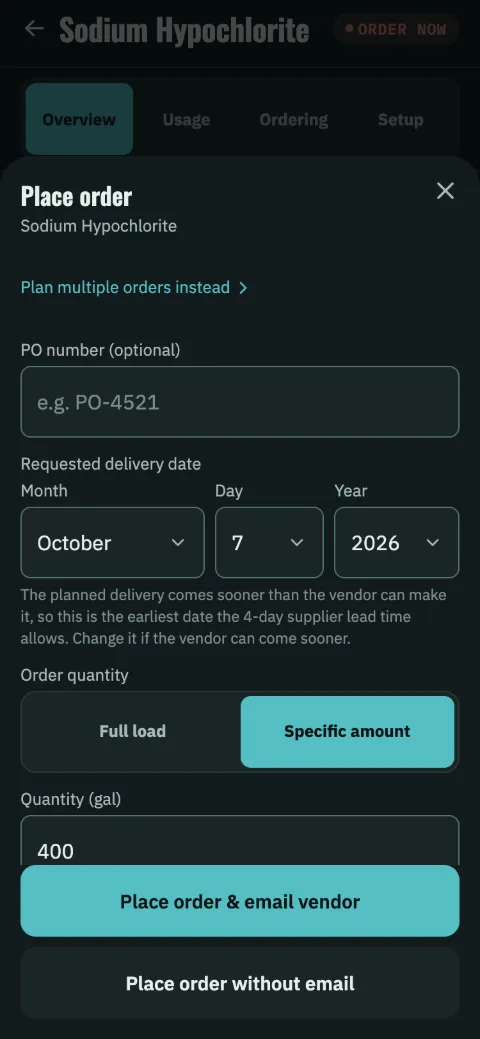
Placing one
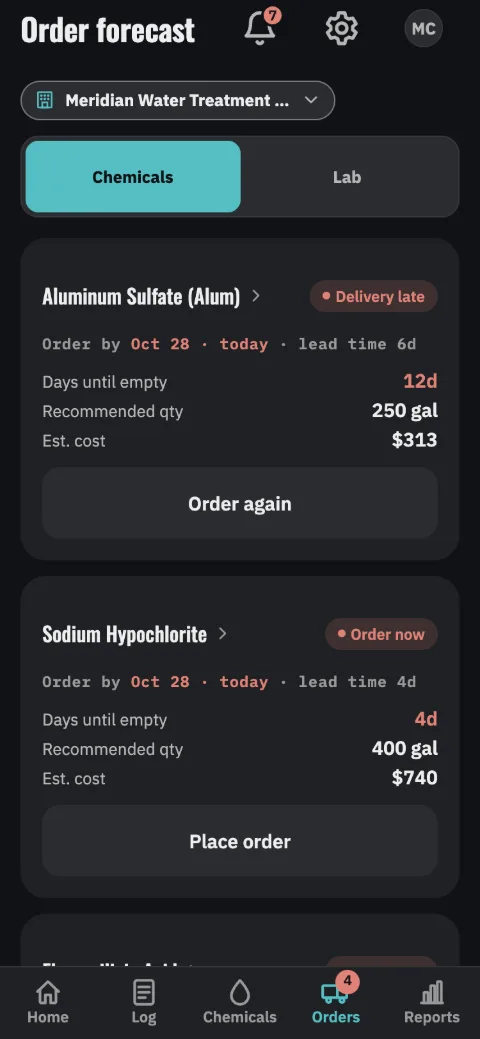
The sheet opens with a quantity filled in: your standard load if one is set, and otherwise the recommended amount. It also fills in a delivery date from the forecast, the day that quantity is sized for. That’s the first day that begins with the tank projected at or below its order-by level, so a truck that morning finds the room. If the tank would run into its safety stock before then, it’s the last delivery day before that. With no order-by level set, it’s the delivery planned before the tank runs low.
The date is never sooner than the supplier’s lead time allows. A tank already at its reorder level starts at the earliest date the vendor can make. So does a chemical with no use recorded yet, since it has no forecast to date it from. Change the quantity or the date if the vendor needs something different. Where it can work out the room, the sheet also warns you if your quantity is more than is projected to fit on the date you pick.
Two ways to finish, and neither sends anything by itself. Place order & email vendor logs the order and opens your own email app, or Outlook or Gmail if you chose one under Settings → Email app. The message is filled in with the quantity, the date and your site’s delivery details. You read it and decide whether to send it. Place order without email logs the order and stops there. Use it when you order by phone, on a vendor portal, or against a standing contract. Either way, the order is recorded, the forecast updates, and the reorder alert goes quiet.
You can still order a chemical with no vendor email on file. You’ll see only the second button.
“Plan multiple orders instead” puts several chemicals on one sheet, for a vendor you buy more than one thing from.
After it is placed
The order sits in Orders until it arrives. When it does, record the delivery: the quantity and what it cost. Those costs are what the spend figures are built from. You can leave the cost blank until the invoice comes and add it later. If you record a delivery after the day it was due, its date is filled in as the due date, not today.
A delivery counts toward the level right away, until the tank is next read. That way the chemical doesn’t look as empty as it was before the truck and set off an order it doesn’t need. Recording a delivery offers Log a reading now (on a rack, Weigh in and count spares), since whoever took the delivery is standing there. That reading replaces the estimate.
If the gauge was read after the truck and the delivery is logged later, even a few days later, the reading already shows it. Nothing is counted twice. A tank logged by amount used is never read, so there a delivery counts until the amounts logged after it have used it up. On a rack, each swap recorded since takes a delivered cylinder off.
Everything you’ve ordered and not yet received sits under Open Orders. Each order shows a delivery date once the vendor gives you one. Until then it’s marked No date yet, with Add delivery date. That opens with the date you asked for filled in, since that’s usually the one the vendor confirms. Change it if they gave another, then save.
The same sheet has Email vendor. It opens the order’s email again, with the quantity as ordered, for an order placed on a device where no mail app opened. Pressing it on its own saves nothing, including the filled-in date. An order with no PO number has its own Add PO number button, so adding a PO never confirms a date along with it.
Orders with no date come first, since each is a call somebody still has to make. The confirmed ones follow. Each group runs soonest first, by the confirmed date or, until there is one, the date you asked for, which the row then shows.
Once a plant has more than a handful of orders, a search box above them finds one by PO number, chemical or vendor, across open and finished orders. The last few digits of a PO from an invoice or a delivery ticket are enough. Below that, Order History holds finished orders. An order appears in one list or the other, never both.
An order past its date with no delivery shows on the dashboard as Delivery late. That’s usually the first anyone hears that a truck didn’t turn up. Two late for the same chemical read 2 deliveries late, with the day each was due, and Log delivery asks which one came. In Open Orders, its date turns red and reads 3 days ago.
An order-by date that has arrived says today beside it, so you never have to work out whether a deadline has come. On a cylinder rack, the figure beside it is spares on hand instead of days until empty. The spare pool decides when to order, and the cylinders already hanging can have weeks left while the rack still needs a delivery.
How to choose the lead time, the safety stock and the order-by level from your own records is covered in When to order treatment chemicals.
7. Flagging a problem
Found on the round, dealt with later
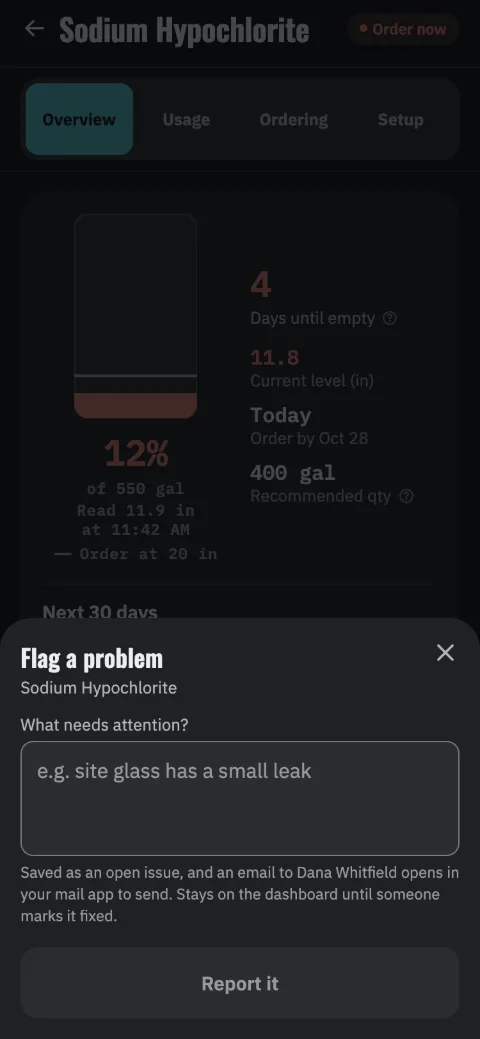
Flag a weeping fitting or a pump losing prime from the chemical it belongs to. Flagging it opens an email to the site’s maintenance contact in your own mail app, ready for you to send. The problem stays on the dashboard until someone marks it fixed, so it isn’t lost at the shift change.
Marking it fixed removes it. ChemLevel isn’t a work-order system, and it doesn’t keep a list of problems already dealt with.
Where they sit until then
Open problems sit on the dashboard, after the chemicals that need ordering. Each shows what was reported and whether it’s been emailed yet. Tap one to Email again if the first one went unanswered, or to Mark fixed. If somebody has already marked it fixed on another device, ChemLevel shows who and when instead of emailing. It also tells you when there’s no maintenance contact on file or no mail app opens.
Anyone at the site can flag one. Only owners, chief operators and supervisors are notified, since the operator who raised it already knows.
8. Reports
Budget
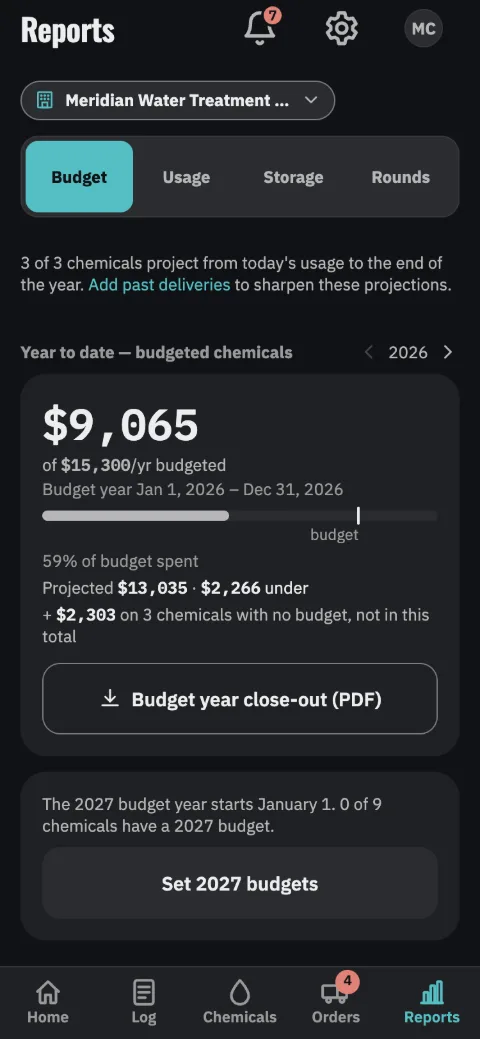
Spend so far this budget year against the budget, for the site and for each chemical. It also shows where the year is projected to end, in dollars (“Projected $3,190 · $790 over”). The bar shows spend so far against the budget line, and only spend past the line is red.
The site total counts the chemicals that have a budget, both this year and in a finished year. Spend on a chemical without a budget is named beneath the total and shown on that chemical’s own card. Chemicals with no budget and nothing delivered are listed together at the end.
The budget year close-out for finance sits with the total. It compares the budgeted chemicals with their budgets and puts spend with no budget on a line of its own, so every line adds up. On a desktop, a table gives each budgeted chemical one line.
Next year’s budgets can go in during the last three months of a budget year. A card under the total says when the next year starts and how many chemicals have a budget for it, and the arrow beside the year steps forward to it. Each budget set there is the chemical’s budget from the day that year begins.
A finished year can take its budget too. Step back to it with the arrow, and a supervisor or buyer can set or edit that year’s budget on each chemical’s card. A year pasted in from before you used ChemLevel then shows over or under like any other. Every budget change, for any year, is kept in the change history with who made it and what the figure was before.
Spend is built from recorded deliveries at what they cost. Each chemical also shows its recent delivered price and whether it has moved. That’s the figure to bring to a contract renewal.
Most plants use far less of everything in winter, when they take in less water. That makes today’s rate, run to the end of the year, wrong in both seasons. Give ChemLevel last year’s deliveries and the projection follows last year’s seasons instead. Supervisors paste them in under Settings → Budget year → Past deliveries, straight from a spreadsheet: the date each delivery arrived, the chemical, and how much came. Nothing is saved until you’ve checked what was read. What’s already saved is listed at the top, by budget year.
If your records have a cost column, include it. Where every load in a budget year has one, Already spent this budget year is read off those invoices instead of being typed. It updates as you paste more. Where only some loads have a cost, nothing is derived (a figure from some of them would read short), and the screen shows how many are missing.
A costed past delivery is never added to what ChemLevel has recorded itself. Only loads from before its own delivery record for that chemical begins count, and a load it already has on the same day counts once. Deliveries ChemLevel already has on record are left out of the paste.
A chemical whose projection still runs on today’s rate shows that on its card. It also gives the reason: no past deliveries on file, too little of the year left, or a gap in last year’s record. That tells you what would fix it. When last year’s pattern and today’s rate disagree by 10% or more, both figures are shown.
Settings → Budget year names the chemicals that still have no usable year, so pasting one chemical’s history never reads as if the whole plant were covered. The projection reads the same months a year earlier, so that screen also shows how far back the records need to reach. Once ChemLevel has a year of its own readings, it follows last year without them.
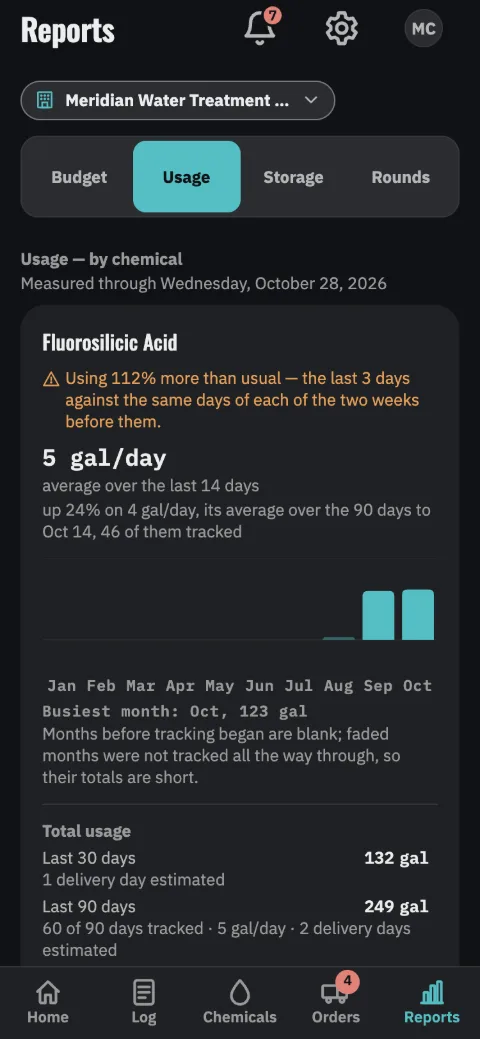
Usage
How much of each chemical the plant has gone through, over the periods you care about. Use this view for a monthly report or a regulator’s question. It exports, and it’s dated, so a screenshot of it shows which day it was taken.
Each card has a bar for every month of the budget year. You can see the shape of the year, and whether this month is running heavier than the last. Months before you started tracking are blank. A month you tracked only part of is faded, because its total is short of what the plant really used.
Month by month, and export opens that year full size, with each month as a figure. From there you can get a PDF, or a CSV of this one chemical’s usage month by month. The CSV includes its 30, 90 and 180-day totals, its rate and its projection. The last 90 days, day by day, are on the chemical’s Usage view, which you can open from the sheet.
A chemical the plant is going through unusually fast is flagged here, as on the dashboard, and sits at the top of the list. Two comparisons are used. One sets the last three days against the same days of the week in each of the two weeks before. The other sets the last couple of weeks against the months before them. Where both are shown, each names the stretch it measured.
On a delivery day the tank level goes up, so that day’s use can’t be read off the gauge. It’s estimated from the days on either side, and each total says how many of its days were estimated. A total covering a longer period than you’ve been tracking notes that and gives its rate per day. That way a partial 90 days can still be compared with a full 30.
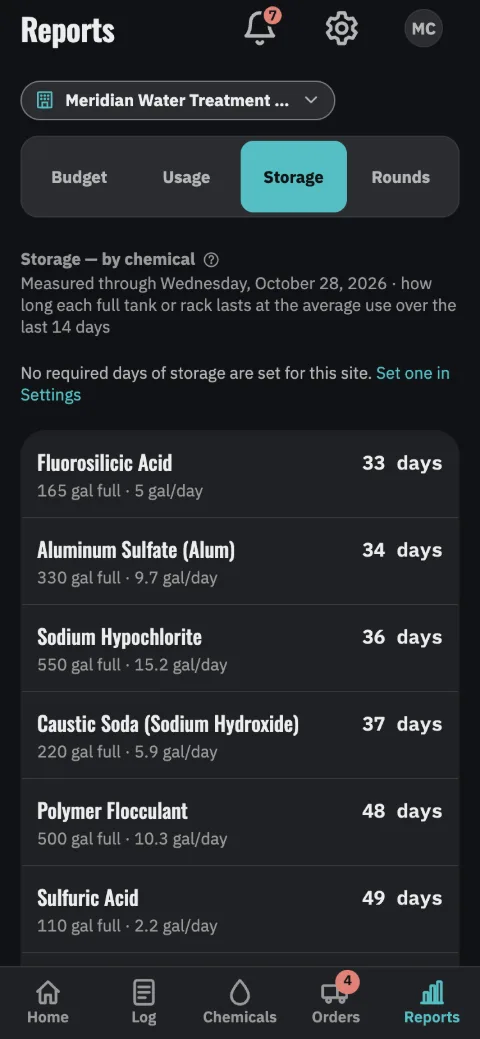
Storage
How long each chemical lasts when its tank or rack is full, at the rate the plant is using it now, shortest first. It’s what the tank holds at its full reading, divided by a day’s use. Each line gives both figures, so you can check it by hand, and the view exports as CSV or PDF. A chemical with no use recorded yet, or no capacity set, notes that and reads No figure yet against a requirement. It isn’t counted as meeting it.
Some states require a plant to be able to store a set number of days of each chemical (the rules, state by state). If yours does, a supervisor enters the number under Settings → Required days of storage. Every chemical that falls short is then marked here, on its Setup view, and on the Dashboard. The sample plant in these screens has none set.
The figures are at current use, because that’s the rate ChemLevel records, and the page notes this. Each state measures its requirement its own way. Texas, for one, sizes storage at the plant’s design capacity, which gives fewer days than current use when a plant is running below design. Check the rule that applies to you.
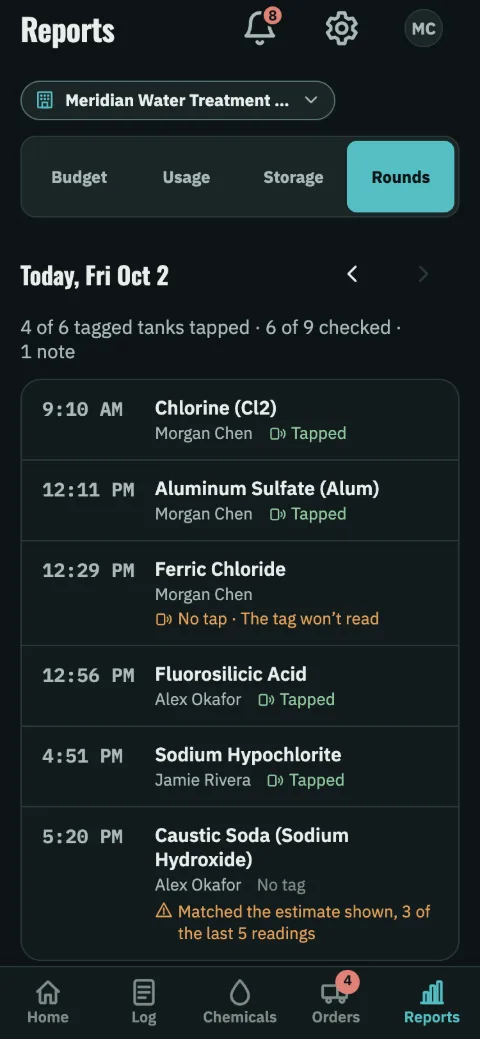
Rounds
A supervisor’s view of one day’s round, on the Team plan. It lists every reading in the order it was taken, who took it, and whether it was tapped at the tank, then the tanks and racks nobody read. The arrows step back through earlier days. The Dashboard’s round card opens it with Review the round.
Tags at the tanks. Tags are optional, tank by tank. A tank without a tag is logged as usual, and its readings carry no mark. A supervisor sticks an NFC tag beside each sight glass or scale to be checked (NTAG215 or NTAG216, on-metal or sealed where the tank needs it). They attach it from the tank’s Setup view in the ChemLevel app, on a phone that reads tags.
Tapping the tag with the phone opens that tank in Log, and the reading saved within 15 minutes is marked Tapped. A reading saved without a tap is marked No tap. Under Settings → Tags at the tanks, a plant can have the operator give a reason first. A reading is never refused for lack of a tap.
Tapped means the phone touched that tank’s tag. It doesn’t check the number. Tags need the iPhone app, on the App Store, or the Android app, on Google Play. A reading logged in a browser on a tagged tank is marked No tap. A reading sent from ShiftRounds carries ShiftRounds’ own mark instead, where it asked for one: Tapped at Chemical feed, in ShiftRounds, or No tap with the operator’s reason. That tap is on the tag for an area of the plant, in ShiftRounds, within the hour before the operator finished the checkpoint. It is never a tap on the tank’s tag here, and doesn’t count toward the tanks tapped.
Rounds also notes three patterns, with or without tags. Each note states only what happened. One is a reading that matched the estimate the app was showing, three times in the last five, while the level was moving. Another is two tanks logged seconds apart by one person. The third is a reading entered hours after the time it gives. Take a look at them, though most will have an ordinary explanation.
9. The lab
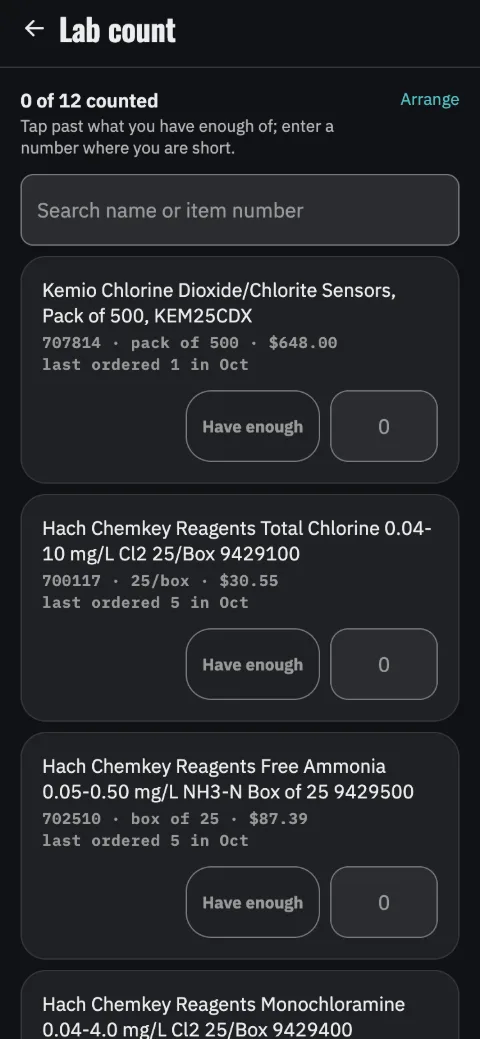
The monthly count
Reagents and standards aren’t dosed, so they aren’t forecast. You count them instead, walking the shelves. Tap Have enough past everything you have plenty of, and type a number only where you’re short. A number saves when you pause or leave the box, and typing 0 is the same as Have enough. A line that couldn’t be saved shows a message with Retry, and Finish waits until every line has saved.
Under Arrange, you can put the list in the order your shelves are in, so the walk matches the room. Drag a row by its grip, or tap the grip and use Move up and Move down. The numbers you type become the order list at the end.
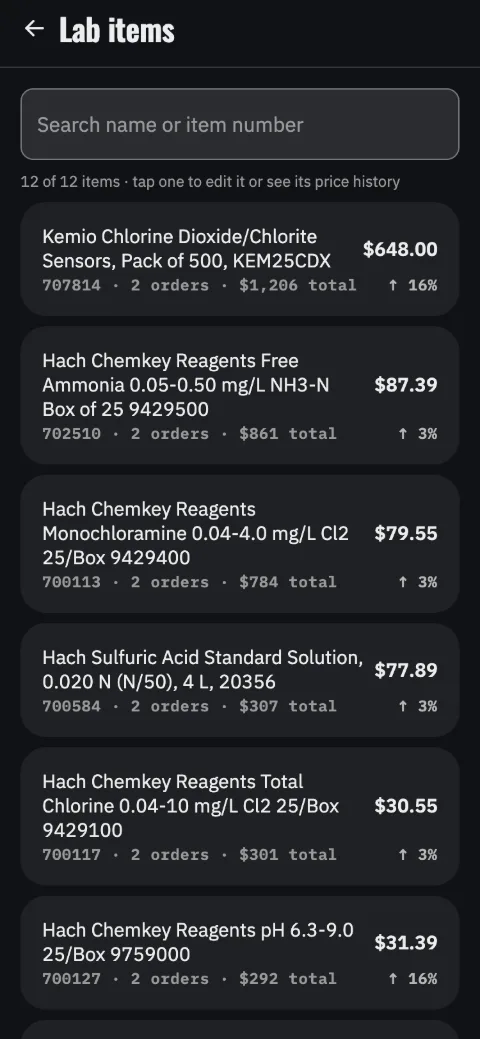
Where the list comes from
You don’t have to type in forty products with catalog numbers. Paste a vendor’s order confirmation, or pick the PDF or CSV they sent. ChemLevel reads the items, quantities and prices off it and builds the list for you. A CSV, or rows copied from a spreadsheet with their column headings, is read column by column. Any line with figures it couldn’t read is listed for you to check.
The confirmation is read on your device and then discarded. It isn’t uploaded, and no copy is stored. A purchasing document carries addresses, contact names and account numbers that an inventory system doesn’t need.
Each item keeps its price history, so you can see what a reagent cost last time and whether it has gone up.
The Lab view under Orders shows what the lab has spent this month and this budget year. A supervisor or buyer can set the lab’s budget for the year there. The view then shows how much of it is spent, and where the year should end at the lab’s pace over the last 12 months. The arrows beside the year step back through past years, each with what it came in at, and a supervisor or buyer can give a past year its budget there too. The lab’s record starts with its first order, so one step back past its first year is an empty year where a supervisor or buyer enters, from your own records, what the lab spent that year and the budget it had. It then reads over or under like any other year. In the last three months of a year, they also step forward to set next year’s budget. Reports shows the lab beside the chemicals, and the budget year close-out gives it a line of its own.
10. Notifications
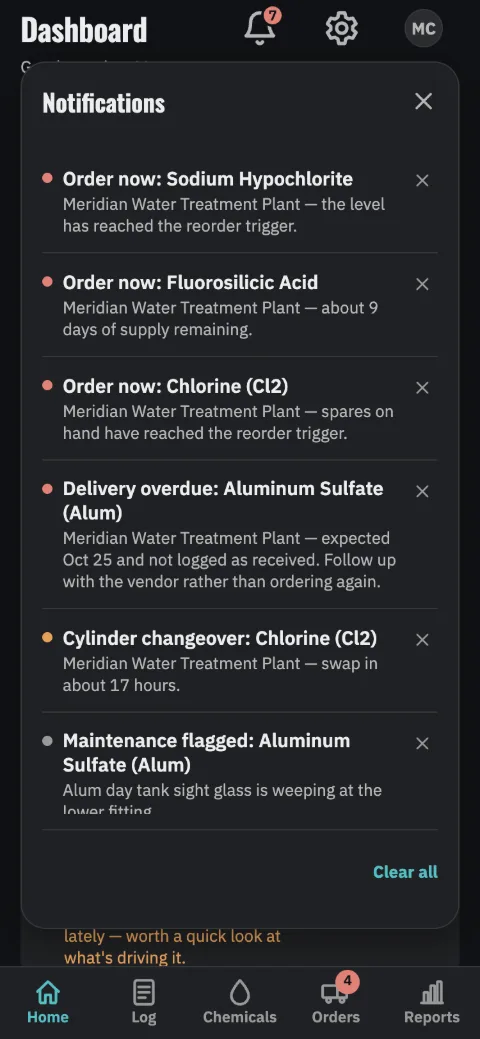
The bell
The bell is at the top of every tab. It lists what needs attention right now: reorders due, deliveries that are late, due today or may not fit, a cylinder rack hours from a changeover or due to be changed before a day off, chemicals not checked recently, maintenance flags, and a site’s monthly lab count once it’s due.
Tapping one opens what it’s about, at its own plant. Usually that’s the chemical. The lab reminder opens that plant’s lab count. A maintenance flag that isn’t about one chemical, or is about one since removed, opens that plant’s Dashboard. Clearing an alert means you’ve seen it. It doesn’t fix anything.
A cleared alert follows you to your other devices, so clearing it at the desk means it’s gone on the phone too. A screen left open keeps itself up to date. Its figures move with the clock, and it picks up what other devices have saved every few minutes. An alert comes back if the condition goes away and returns. Clear all clears the whole list at once, and clearing one or all offers Undo while the list stays open. A screen left open keeps itself up to date. Its figures move with the clock, and every few minutes it fetches what other devices have saved.
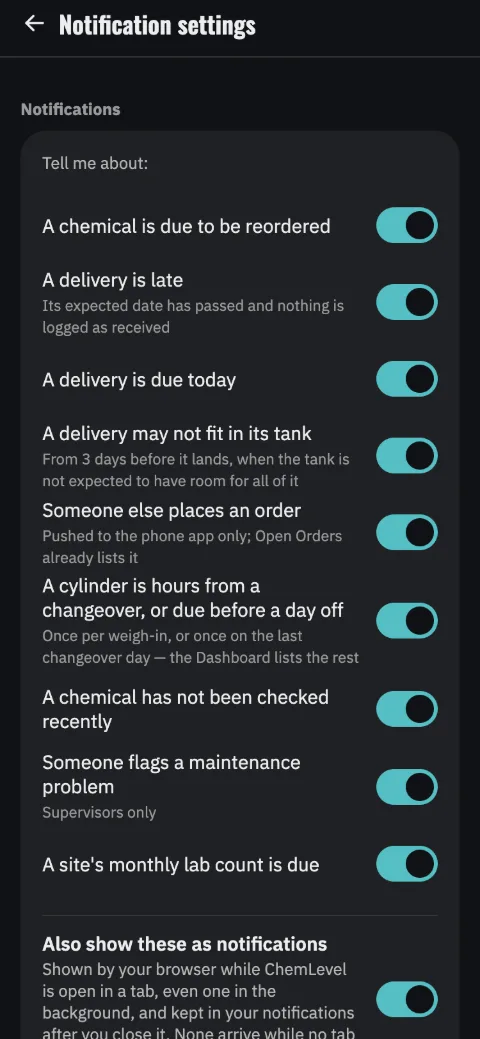
Choosing what you are told
There are nine kinds of alert, and you can switch each one off on its own: a chemical due to be reordered, a delivery that’s late, a delivery due today, a delivery that may not fit (from three days before it lands, when the tank isn’t expected to have room for all of it), an order somebody else placed, a cylinder changeover, a chemical that hasn’t been checked, a maintenance problem, and the monthly lab count. A delivery that may not fit is flagged from three days before it lands, when the tank isn’t expected to have room for all of it. Then one switch decides whether they’re also shown as notifications.
In the iPhone and Android apps, this is Settings → Push notifications, and the switch reads Send these as push notifications. With it on, alerts are sent to your phone even while ChemLevel is closed. They’re the same alerts the bell shows, worked out on our servers every few minutes and on each plant’s own clock. Between 9 p.m. and 7 a.m. at the plant, alerts wait. One that starts overnight, such as one that falls due at midnight, is sent at 7 a.m. if it still holds. A new order or a reported problem is sent at once.
In a browser, ChemLevel shows the notifications itself while it’s open, even in a background tab. Your choices follow you to every device you sign in on, and clearing an alert in the bell stops it from being sent. A new order is sent to your phone only, since Open Orders already lists it. Switch them all off and the bell stays where it is, saying alerts are off, so you can always find your way back.
The cylinder changeover alert works differently. A rack with several cylinders in service has a changeover due most days. You’re alerted once, when the rack is down to hours, instead of every day before. At a rack with changeover days set, you’re alerted once more, on the last changeover day before a cylinder runs out on a day off. The full list stays on the Dashboard, and how far ahead it looks is set under Forecasts.
- Days before the reorder point
- How much warning you want before a chemical is due. Higher means earlier and more often.
- Hours without a check
- How long a chemical can go unlogged before ChemLevel alerts you. Set it to match your rounds.
11. Setup and settings
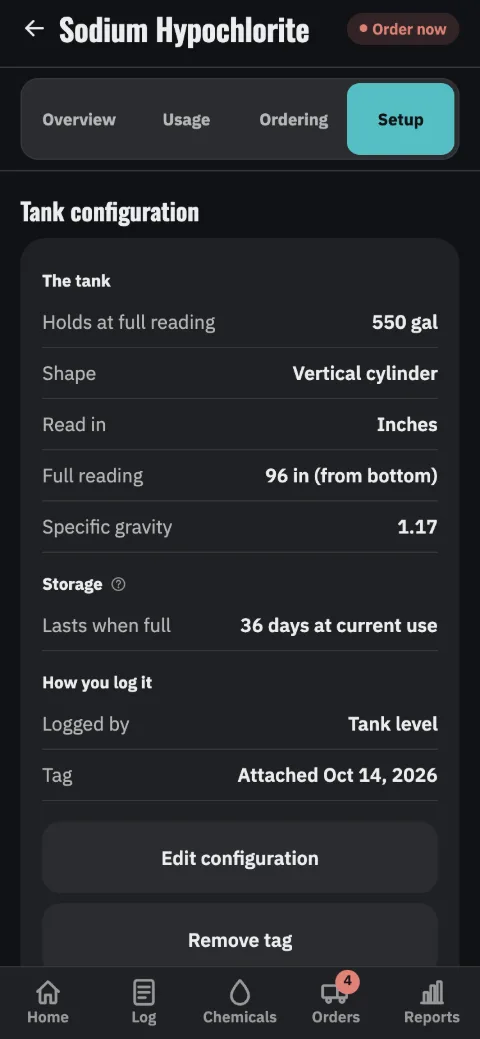
What a chemical needs set up
You set these once and rarely change them, so they stay out of the way. Open any chemical and switch to Setup for the tank or rack itself, or to Ordering for when to order, what to order and who from. Each has its own button, Edit configuration and Edit order settings, which opens only that group of settings. The Overview is what somebody on the floor came for. The other two are yours.
- The tank
- On Setup: what the tank holds at the full reading, its shape, and how it’s read on site (inches from the bottom, gallons, whatever the gauge shows). That first figure isn’t the nameplate. A nameplate gives the whole vessel, but ChemLevel needs the volume when the gauge reads full, which is usually less. Get it wrong and every level, days-to-empty and order-by date is off by the same proportion. If you have a tape measure and no figure, the tank details can work it out from the measurements. The shape is what converts a level to a volume correctly. A tank on its side holds far less per inch near the bottom and top than across its middle, so give it a diameter and length too. Tank level to gallons has the arithmetic, shape by shape.
- Storage
- Also on Setup: how many days the tank or rack lasts when full at current use, against the plant’s required days of storage when one is set. It’s only as accurate as the figure above it.
- When to order
- On Ordering, like the two below it: the level that triggers a reorder, how many days of safety stock you want, and the supplier’s lead time. Those three decide every order-by date.
- What to order
- A standard load, a top-off, or a full load, whichever matches how you buy it. A full load’s size is optional. If it’s blank, ChemLevel uses the middle of the last five deliveries once there are three, notes this beside it, and offers it to fill in.
- Cost & vendor
- Unit cost and who you buy from. The vendor email is where an order request goes when you choose to email one. Leave it blank if you order another way.
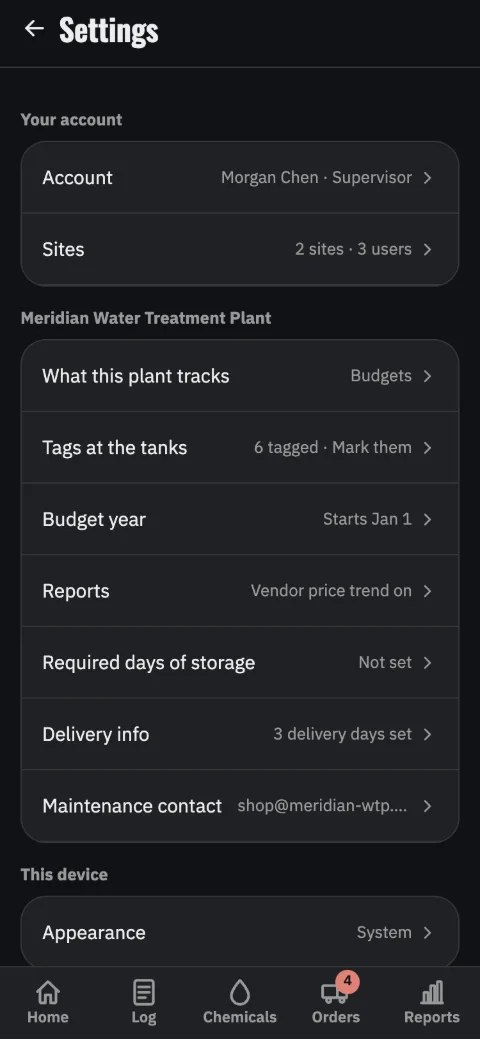
Settings
Settings are grouped by what they belong to: your account, this plant, this device, and your data. A plant setting reaches everyone at that site. A device setting is yours alone.
Get these plant settings right early: the budget year, the maintenance contact, delivery info, and, if your state sets one, the required days of storage. Delivery info is the days and hours a truck can get in. ChemLevel uses it to keep proposed delivery dates on days somebody is there to take them.
Settings → Email app chooses where an order, a lab order or a maintenance email opens: this computer’s or phone’s own mail app, Outlook, or Gmail. In a browser, Outlook and Gmail open the message in a new tab, so allow pop-ups for app.chemlevel.com if the browser blocks it. On an iPhone or iPad they open the Outlook or Gmail app, or the phone’s own mail app if that one isn’t installed. On Android, Android asks which app to use, and remembers it if you tap Always. Your choice is saved to your account, so every device you sign in on uses it. Whichever app opens, nothing is sent until you press Send.
Settings → ShiftRounds, on a Team account, connects ChemLevel to ShiftRounds, operator rounds software for water and wastewater plants from the same team. An owner or chief operator gets a one-time connection code there. An owner or chief operator in ShiftRounds enters it on the ChemLevel page of its console within 30 minutes, and this page says so once it connects. In ShiftRounds they then choose which of its readings go to which of your tanks and cylinder racks, and from then on those readings arrive here as logs.
An owner or chief operator can disconnect it here, and ShiftRounds can from its console. Readings already sent stay, and connecting again takes a new code. While an account is read-only, ChemLevel turns ShiftRounds’ readings away until it’s renewed.
Under Data & support is How the numbers work. It covers every figure the app derives and what it’s derived from, using the values this plant is set up with instead of the defaults. The same page is on the website if you’d rather send someone a link than a screenshot.
A plant that goes out of service is archived, not deleted (Settings → Sites, owners and chief operators only). Its readings, deliveries, orders and history are all kept, and it can be restored later. It leaves the site switcher, which goes away entirely once only one plant is left in service. It also stops appearing in Reports, alerts and data exports, so export first if you want its records on hand.
Archiving also frees the plant against your plan’s limit, so a replacement set up before your next renewal needs no extra plant on the plan. On Team, which is priced per plant, the next renewal bills only the plants still in service. After that, restoring an archived plant needs room on your plan, and the Sites screen offers Restore only when there is.
You can’t archive the last plant still in service, since an organization with none has nothing to run. To end the organization, use Close this account, below. Archiving still works after a trial or plan has ended, so an account can get down to the plants its chosen plan covers. Restoring one waits until a plan is chosen.
Last under Your account, Leaving ChemLevel holds the three ways out. They’re kept apart because they do different things.
Leave this organization takes you off the roster and leaves the plant’s records alone. It’s the one an operator moving on wants. Delete your account removes your login itself, right away, and leaves the plant’s records with your name taken off them. Close this account ends the organization and deletes everything it holds 30 days later (for an account whose trial or plan has already ended, on the date already set). Only owners and chief operators can close an account.
Each one opens a confirmation that says what it will do before anything happens. Deleting your account and closing the organization ask you to type the name of what’s ending: your email address, or the organization’s name.
None of these is Remove this account from this device, higher up. That only takes your account off this device and deletes nothing on the server. Anything this device hasn’t yet sent for you is lost, and you’re warned first. What deletion covers is set out in the privacy policy.
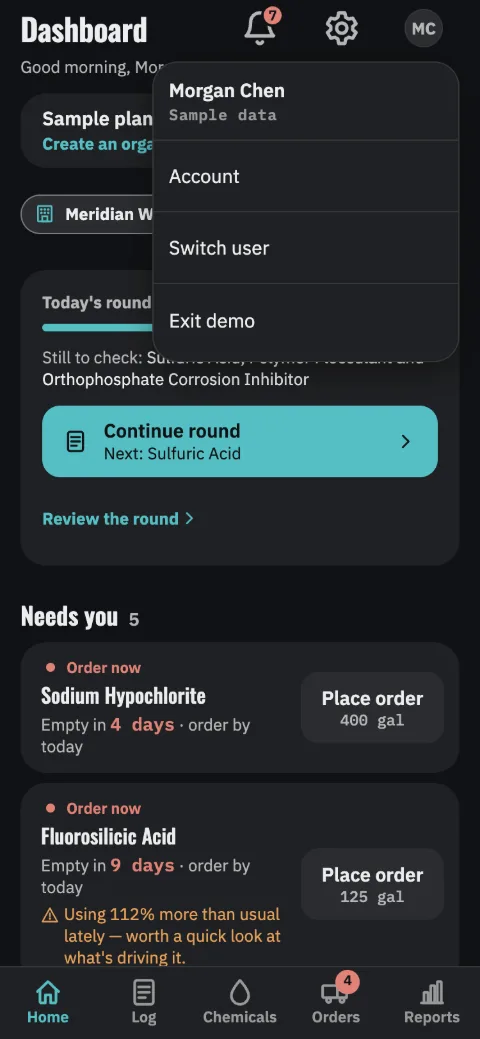
Who is signed in
The account menu is top right on every tab. A phone, tablet or computer you sign in on is yours, with no PIN: ChemLevel stays signed in, like your other apps, and a phone or tablet can lock it with Face ID or a fingerprint under Settings › Lock. Switch user goes back to the first screen, where you continue or someone else signs in. If someone else does, you’re signed out of it. Anything you saved there that hasn’t reached the server yet keeps your name on the list until you unlock once to send it. Owners, chief operators and supervisors see budgets, reports and team settings. Buyers see orders and budgets. Operators see the round.
A tablet the whole crew uses can instead be set up as a shared device, with nobody’s account on it. An owner, chief operator or supervisor adds it under Settings › Devices, which shows a one-time code, and on the tablet Set up a shared device on the first screen takes it. Each person then picks their name and enters their PIN for shared devices, set by a supervisor in People or by themselves in Settings, and everything saved goes in their name. Someone who never signs in anywhere can be added to People by name, for shared devices only. A shared device shows no prices or budgets, and offers no setup, people or billing, whoever unlocks it. Five wrong PINs lock that person out on it until a new one is set. Removing it under Settings › Devices stops it working at once.
Try it on your own plant. A free trial (opens in a new tab) is 15 days with no credit card. Create your organization, add a plant and its chemicals, and log readings for a couple of weeks while the forecast settles. A sample plant comes with it, Meridian WTP (sample), so you can see forecasts and orders working meanwhile; it’s removed when the trial ends. Nothing is charged automatically; you pick a plan when the trial ends.